Gulf South Elevator · HubSpot guide
Working your leads in HubSpot
Every quote request and every new caller ends up in one place. Here is how to see yours, call them, and keep the job moving.
For Carl, Jennifer, Christie, Steve and Mark
Section 1
What HubSpot does for us
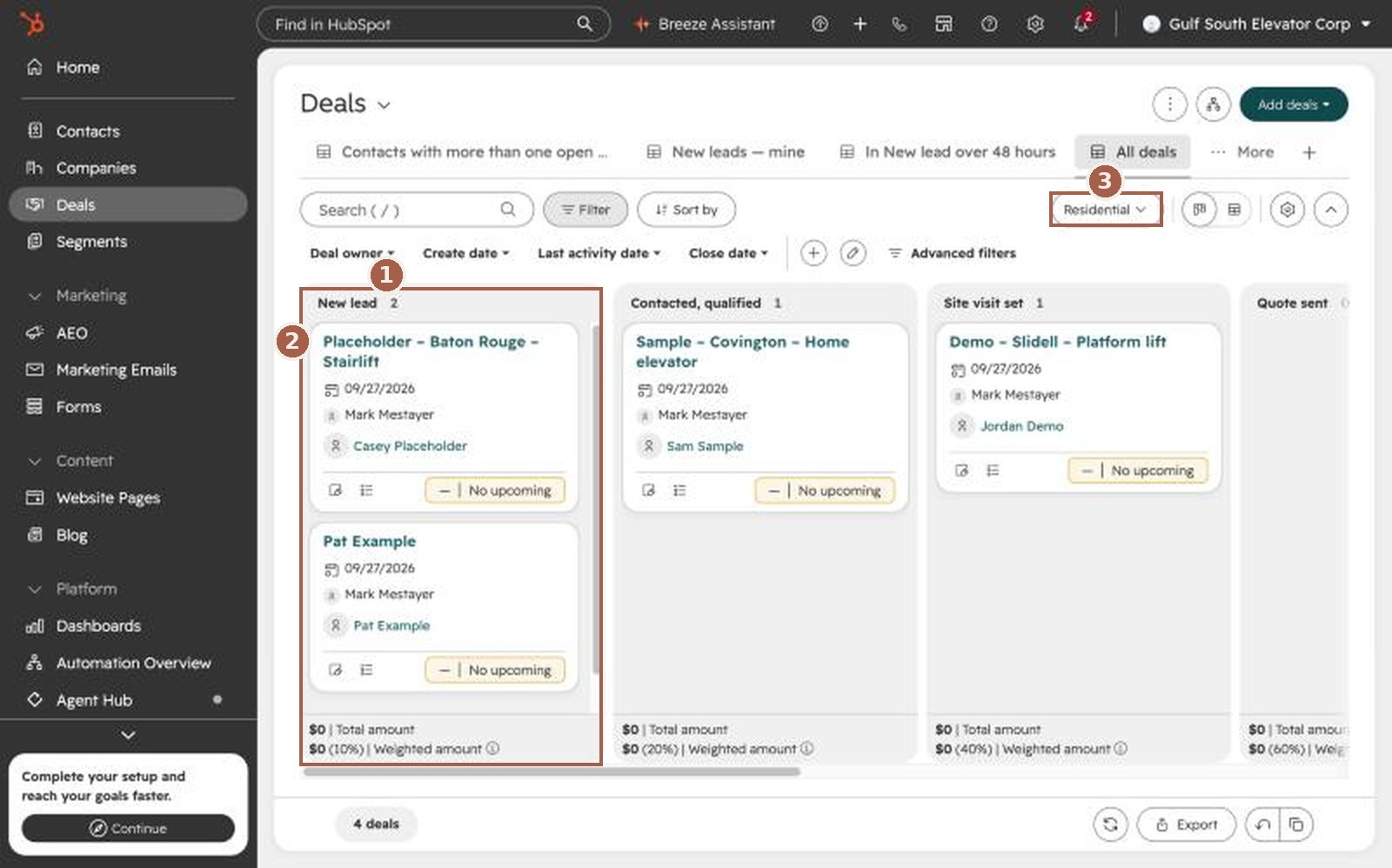
HubSpot is where every new customer inquiry lands, from the website or the phone. Each inquiry becomes a deal: one card that follows one job from the first call to the signed contract.
You do three things in HubSpot:
- See the new leads that are yours.
- Call the person, then write down what they need.
- Move the card along as the job moves.
HubSpot records the rest by itself, like where the lead came from and which ad brought them in.
Section 2
How a lead reaches you
From the website
- A deal appears in the New lead column, already assigned to the right person.
- You get an email from HubSpot saying a new quote request came in.
- The customer gets an email saying we received their request and someone will be in touch soon.
- If the customer attached a photo or file, such as a picture of their stairs, a note on the deal has a link to open it.
From the phone
- When a new caller stays on the line for more than a minute, a deal appears in New lead, assigned by which office line they called. This is being set up now; until it is on, create the deal yourself (section 7).
- The person who answered gets a task to write down what the caller needs.
Anything else
A walk-in, a referral, a manufacturer lead, or a missed call you return: you create the deal yourself. Section 7 shows how.
Section 3
Who owns what
The salesperson owns the deal. The inside sales person works it alongside them.
| Where the lead is | Deal owner | Working alongside |
|---|---|---|
| Louisiana: New Orleans, Northshore, Baton Rouge | Mark | Jennifer |
| Alabama | Steve | Christie |
| Commercial: contractors, architects, commercial equipment | Jennifer, who hands it to Carl or Steve by territory | — |
| Mississippi, Florida, anywhere else | Jennifer, who hands it to the right person | — |
If a lead belongs to someone else, change the owner (section 6). Nothing breaks when you do.
Section 4
Your five minutes each morning
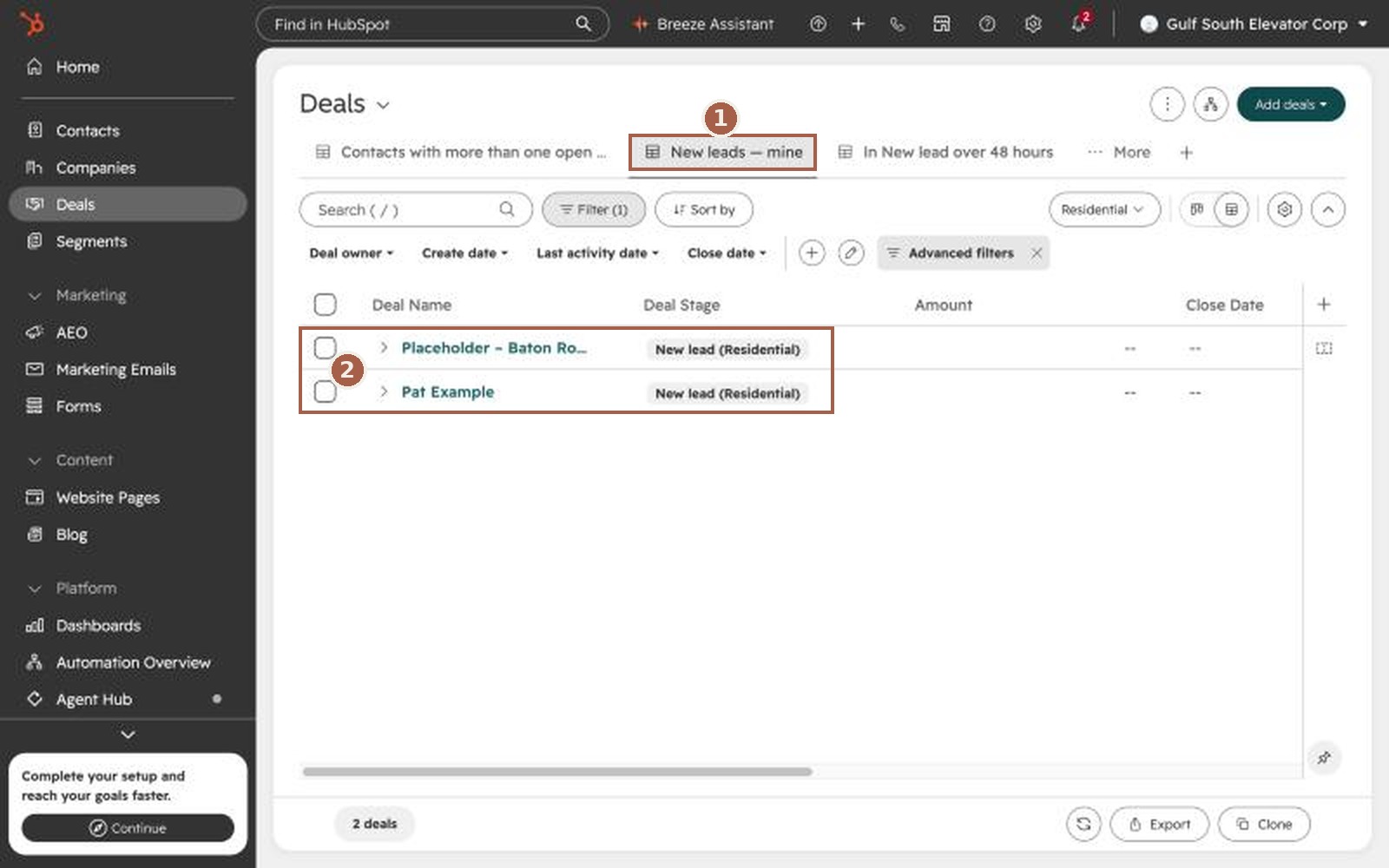
- Open HubSpot and click Deals in the menu on the left.
- Click the tab New leads — mine across the top.
- Everyone on this list is waiting to hear from us.
The 48-hour rule
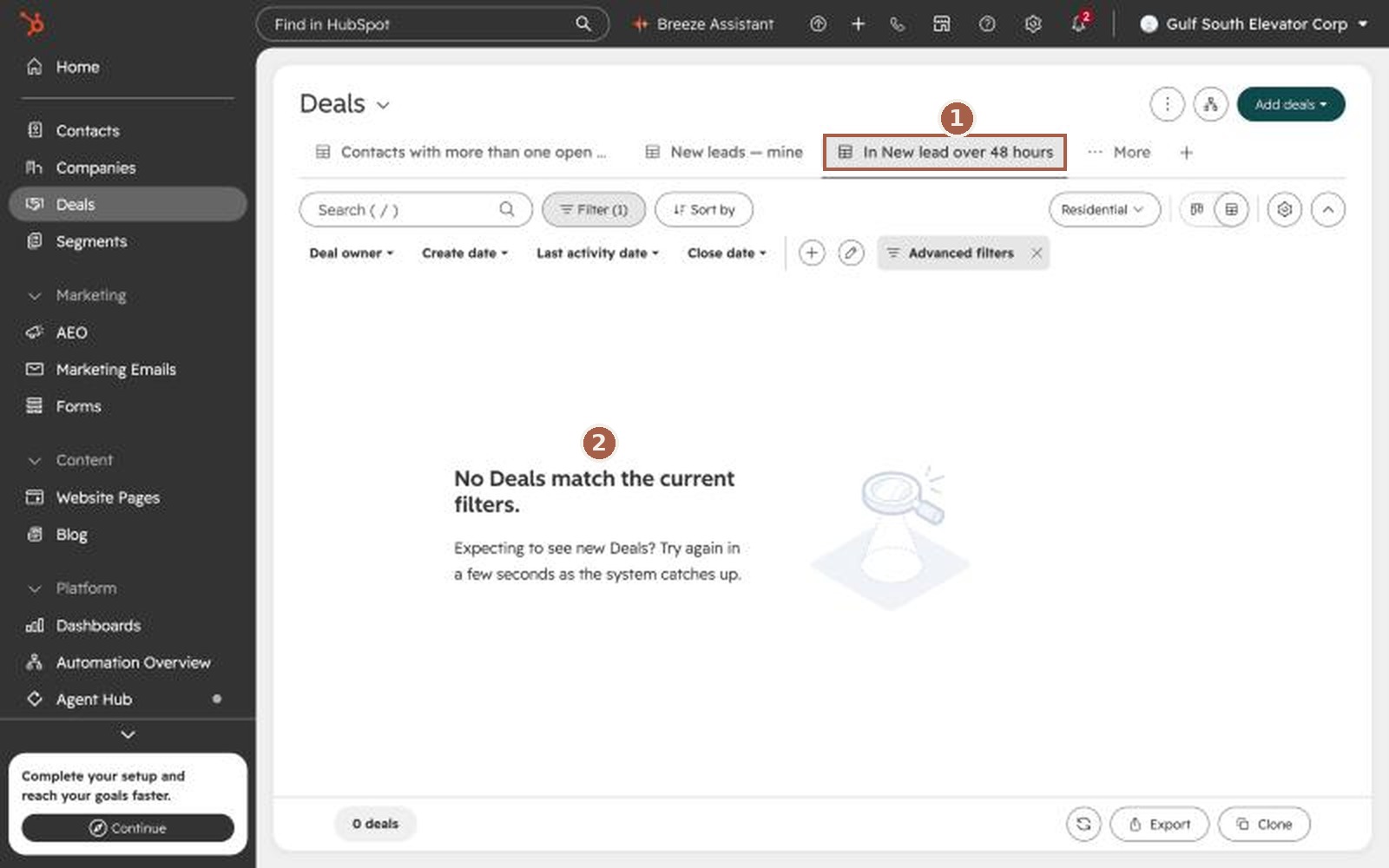
Every new lead gets a first contact within 48 hours: a call, or a message if you can't reach them. The tab In New lead over 48 hours shows any that have waited too long. It should be empty every morning.
Section 5
Working a new lead, step by step
- Open the card. Click the deal name. The left side shows the deal. The right side shows the customer and how to reach them. If they sent a photo or file, open it from the note on the deal before you call.
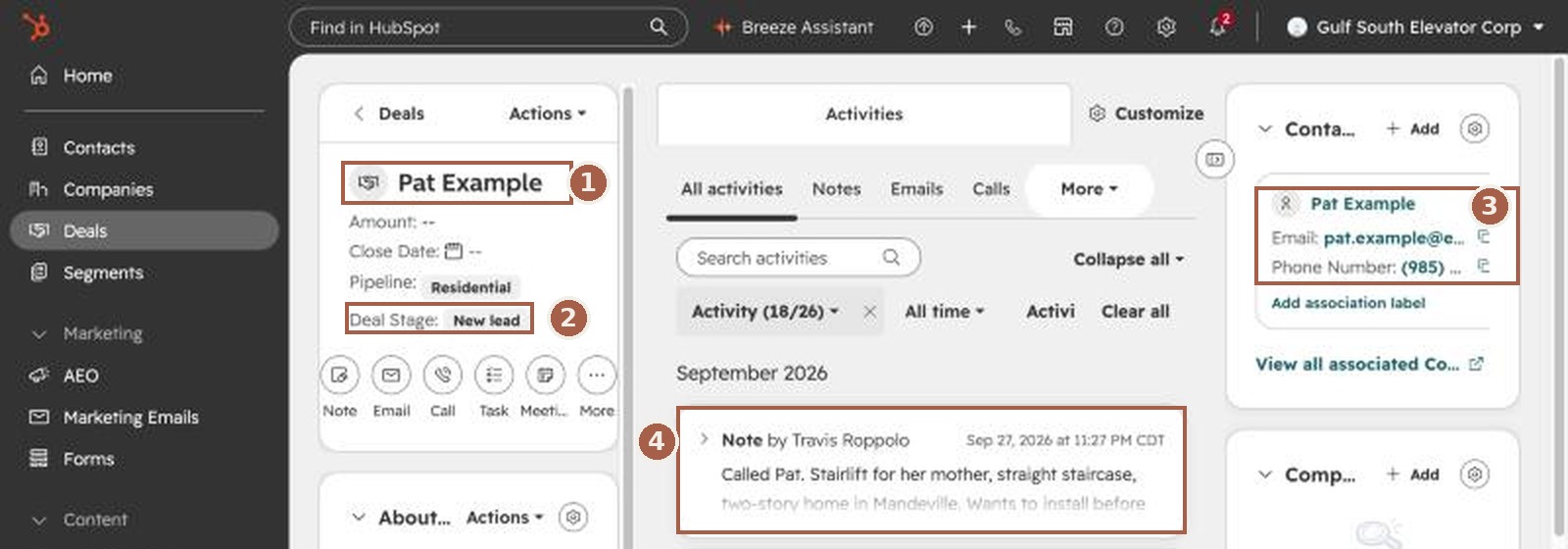
- Call them. Use the phone number on the right.
- Write down what they need. Click Note and type a few lines: who it's for, what they want, the home or building, and the timing. Then click Create note.
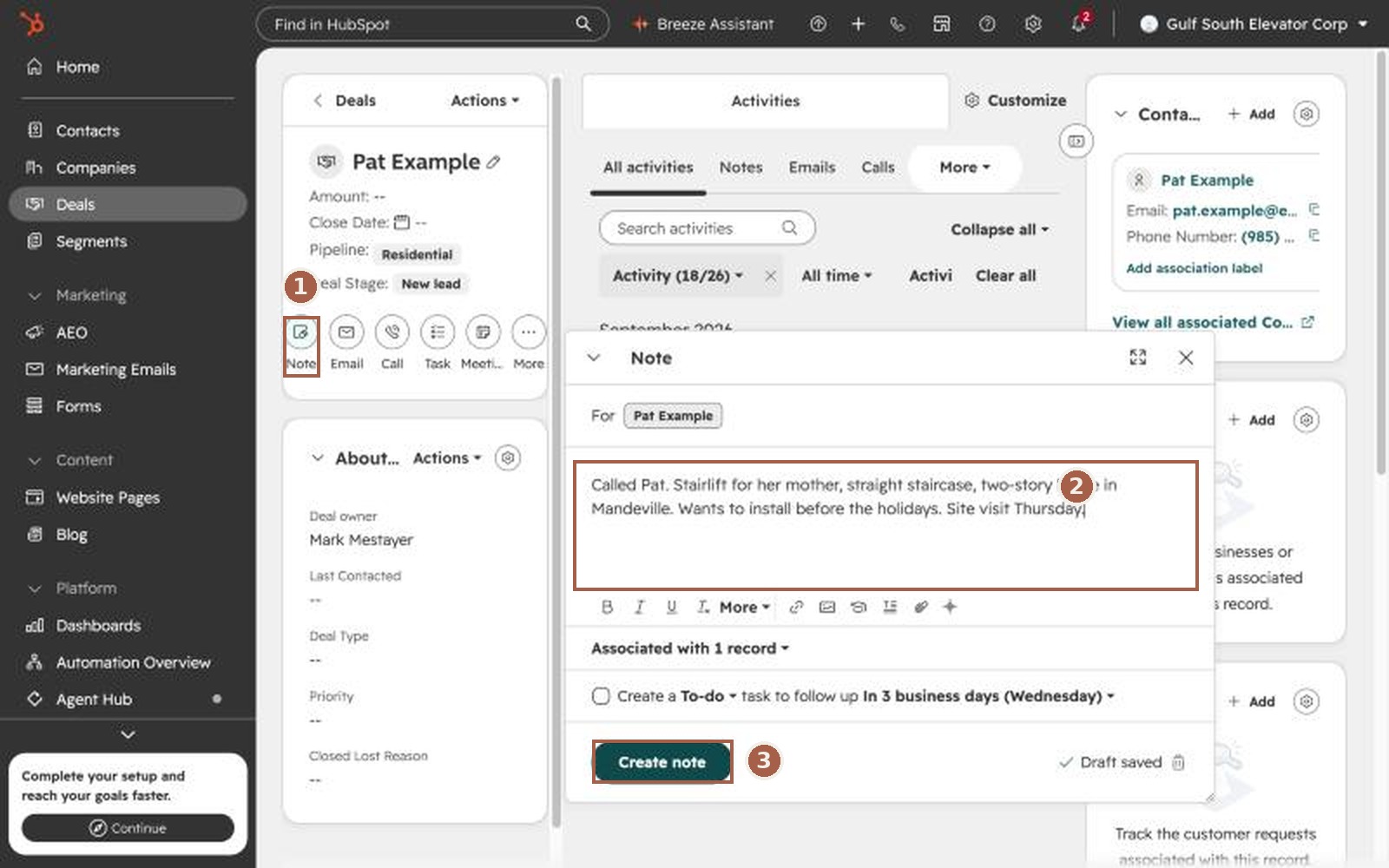
- Rename the deal. Click the pencil next to the deal name and change it to Last name – City – Product, for example Broussard – Mandeville – Stairlift. That way everyone can find the job by name.
- Fill in Primary line. Pick the main product: home elevator, platform lift, stairlift, wheelchair ramp, ceiling lift, dumbwaiter, commercial elevator or commercial platform lift.
- Move it to Contacted, qualified. Click the stage next to Deal Stage and pick the next one. On the board, you can also drag the card to the next column.
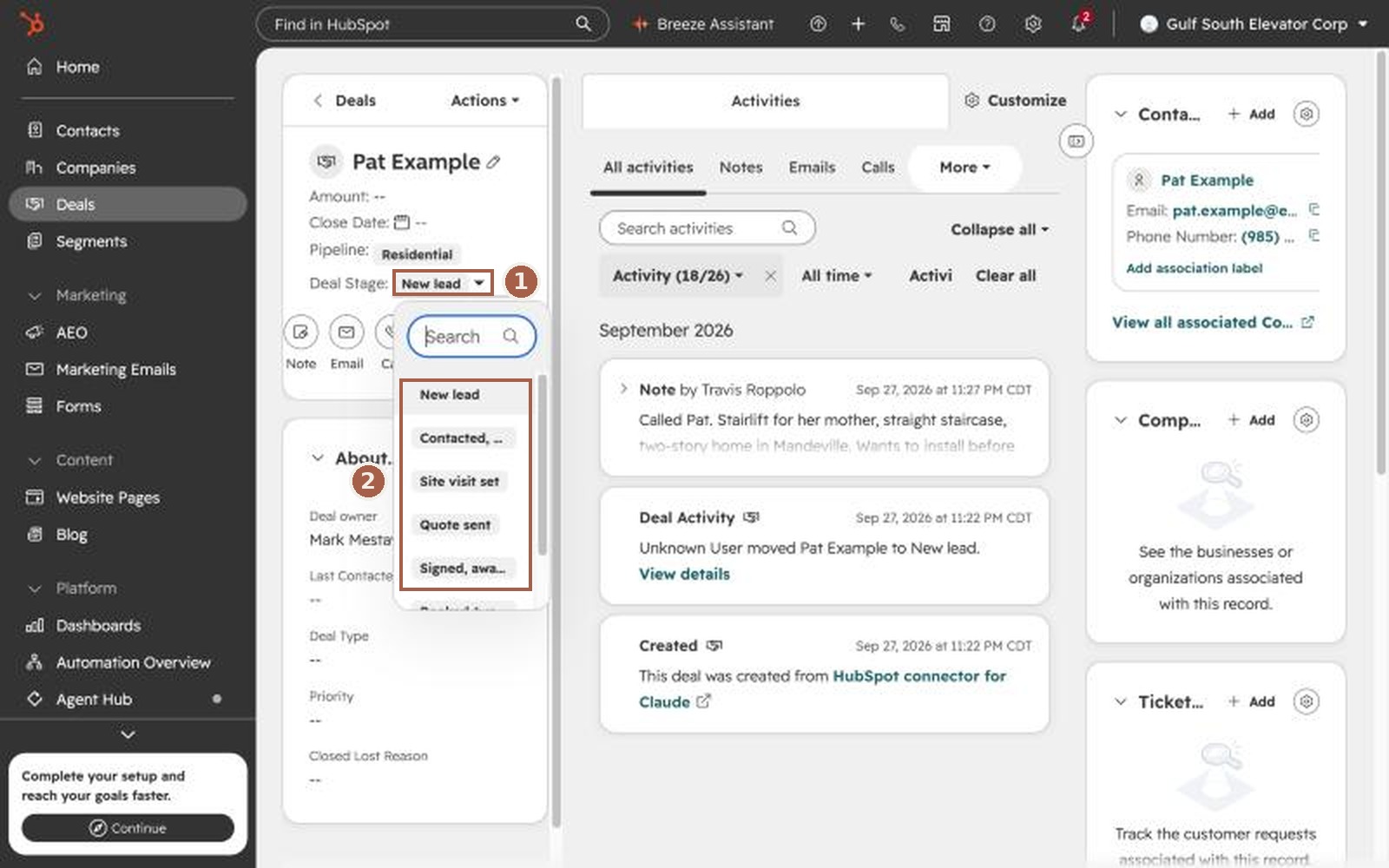
Not a real lead?
Spam, a vendor, a job seeker, a wrong number, outside our area, or something we don't sell: move it straight to Lost and pick the reason. That's fine, and it keeps our numbers honest.
Section 6
Moving a deal along
Each column means one thing. When you move a card, HubSpot may ask you to fill in a field. That's on purpose: it's the one fact we need at that step.
| Column | What it means | HubSpot asks for |
|---|---|---|
| New lead | They asked; nobody has reached them yet | — |
| Contacted, qualified | We talked, they're in our area, and it's something we do | Primary line |
| Site visit set Commercial: Drawings / site review | The visit is on the calendar | Site visit date |
| Quote sent Commercial: Proposal sent | They have our written quote | Amount and quote sent date |
| Signed, awaiting deposit | Contract signed, deposit not in yet | Contract signed date |
| Booked (won) | Signed and deposit collected | Amount and deposit collected date |
| Lost | Any ending that isn't a sale | Lost reason |
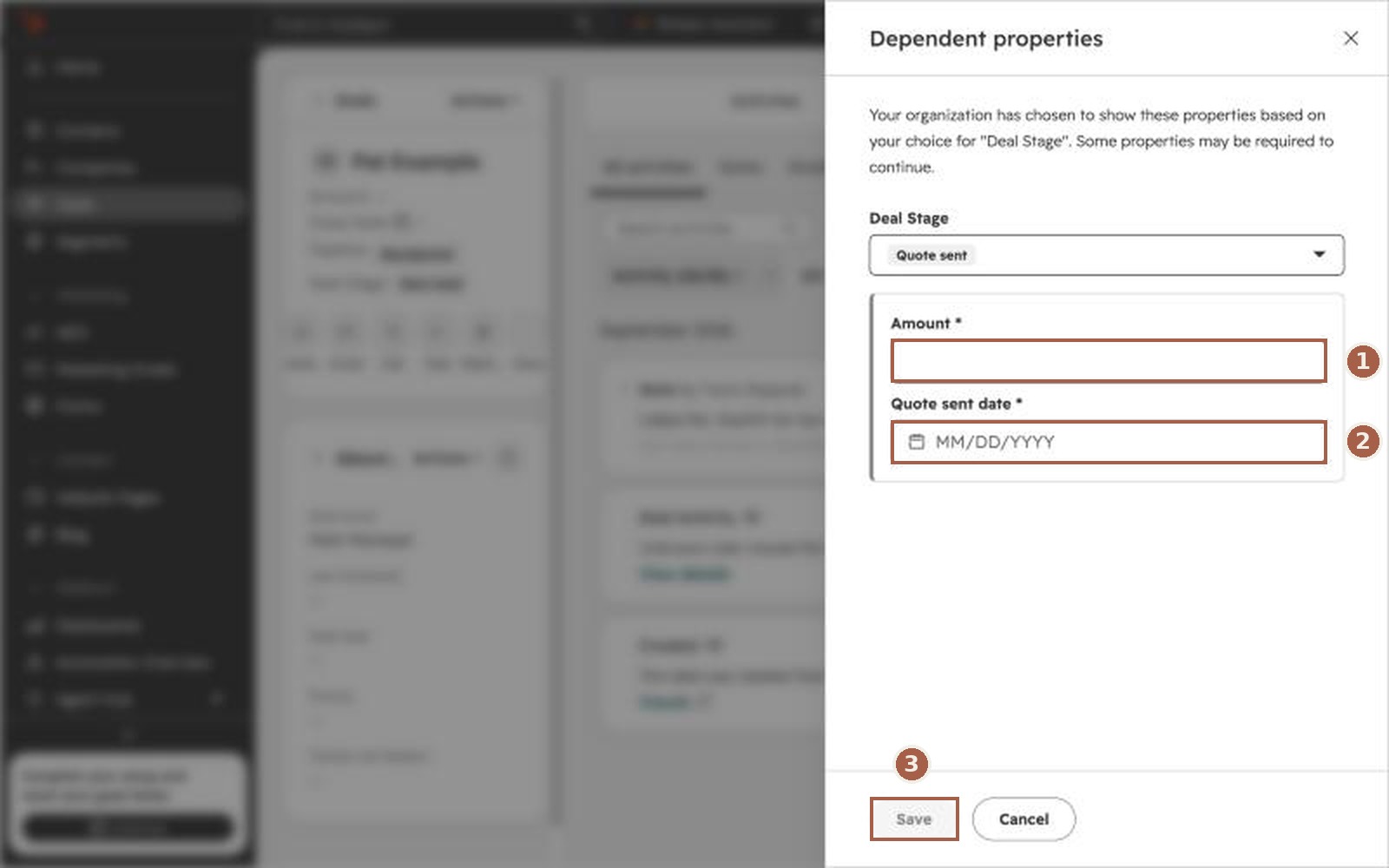
Booked means signed and the deposit is in
Don't move a card to Booked early. Once Service Fusion is connected, moving a deal to Booked is what creates the job there.
Handing a deal to someone else
Open the deal, click the name under Deal owner, and pick the new person. For example, Jennifer hands an Alabama commercial job to Steve, or Mark hands a job to Carl.
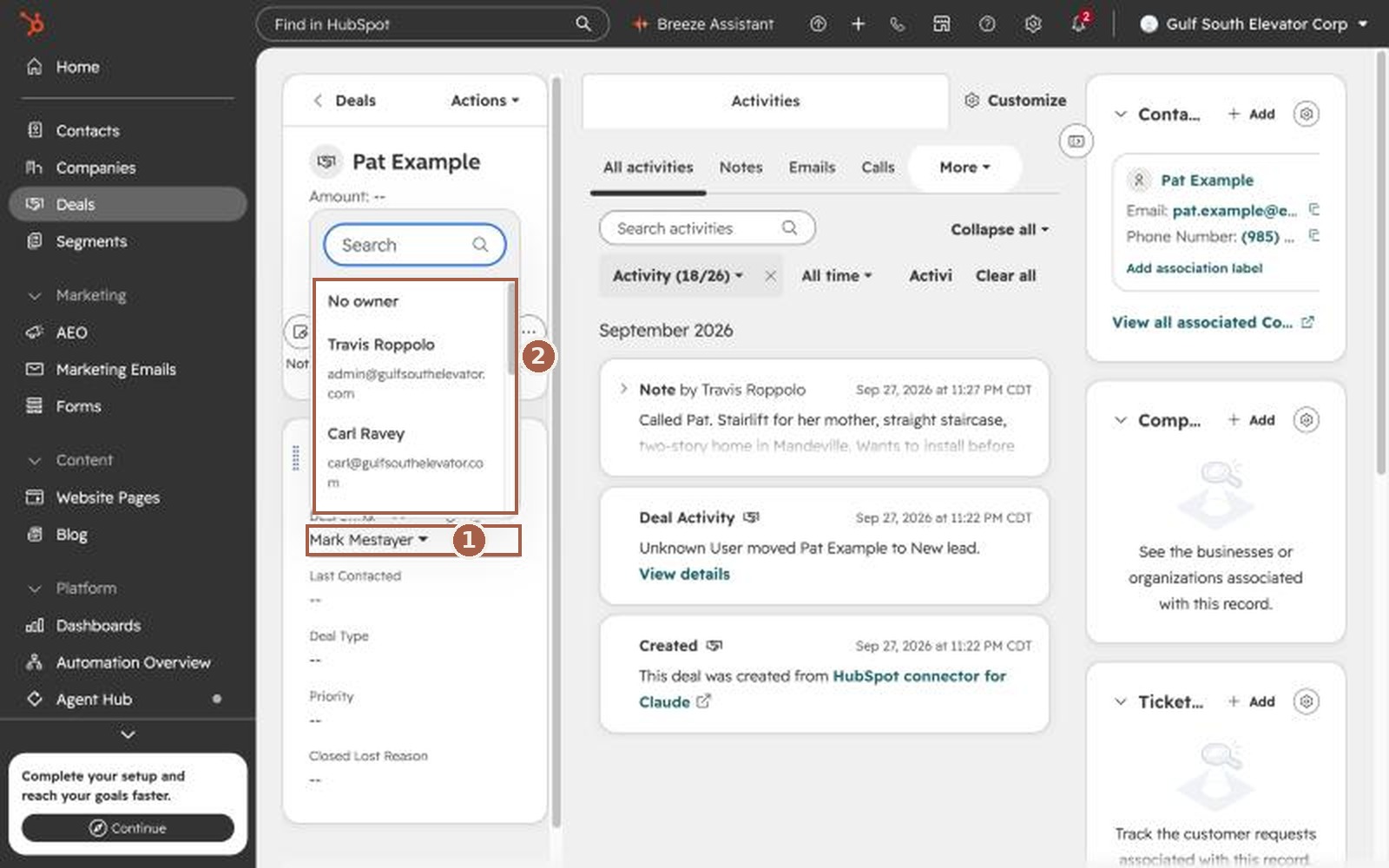
Picking a lost reason
Choose the closest one: price, chose another company, financing didn't come through, postponed, no response, and others. It tells us why we lose work, so please don't skip it.
Section 7
Creating a deal yourself
Do this for walk-ins, referrals, manufacturer leads, and missed calls or voicemails you return.
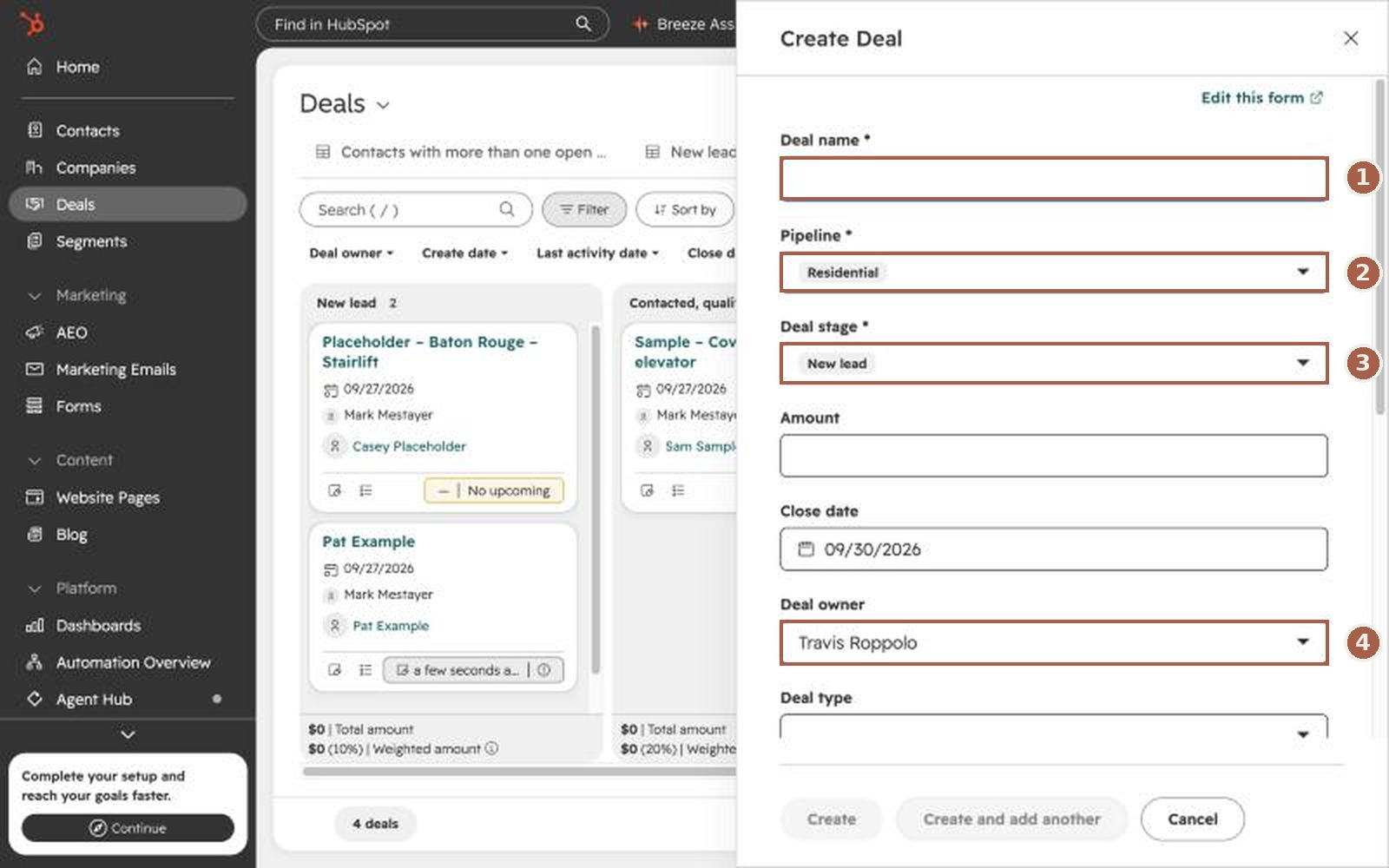
- On the Deals page, click Add deals (top right), then Create new.
- Deal name: Last name – City – Product.
- Pipeline: Residential, or Commercial for contractors and commercial buildings.
- Deal stage: New lead.
- Deal owner: the salesperson for that area (section 3). HubSpot fills in your own name, so change it if the lead isn't yours.
- Lead intake source: how they found us. Phone, walk-in, referral, a manufacturer's website (Cibes, Fox Valley, Harmar, PVE), or a program (Medicaid, LA Patient's Fund, Easter Seals, Mobility Trust Group, Elevator World).
- Contact: scroll down and search for the person. If they aren't there yet, add them with name, phone and email.
- Click Create.
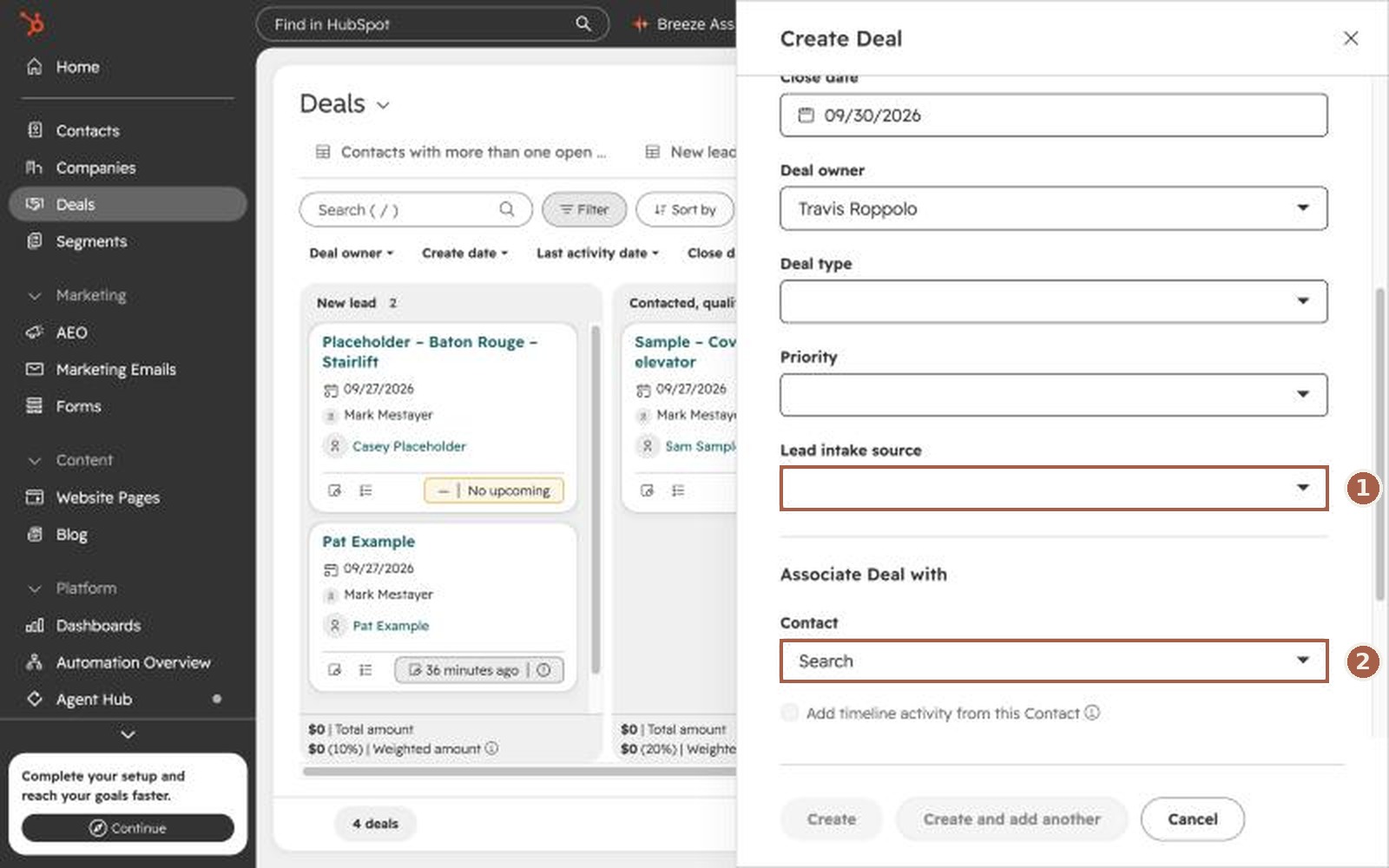
Lead intake source matters. It's how Carl sees which referrals, manufacturers and programs send us work.
Section 8
HubSpot and Service Fusion
Each system has one job, and the deposit is the line between them.
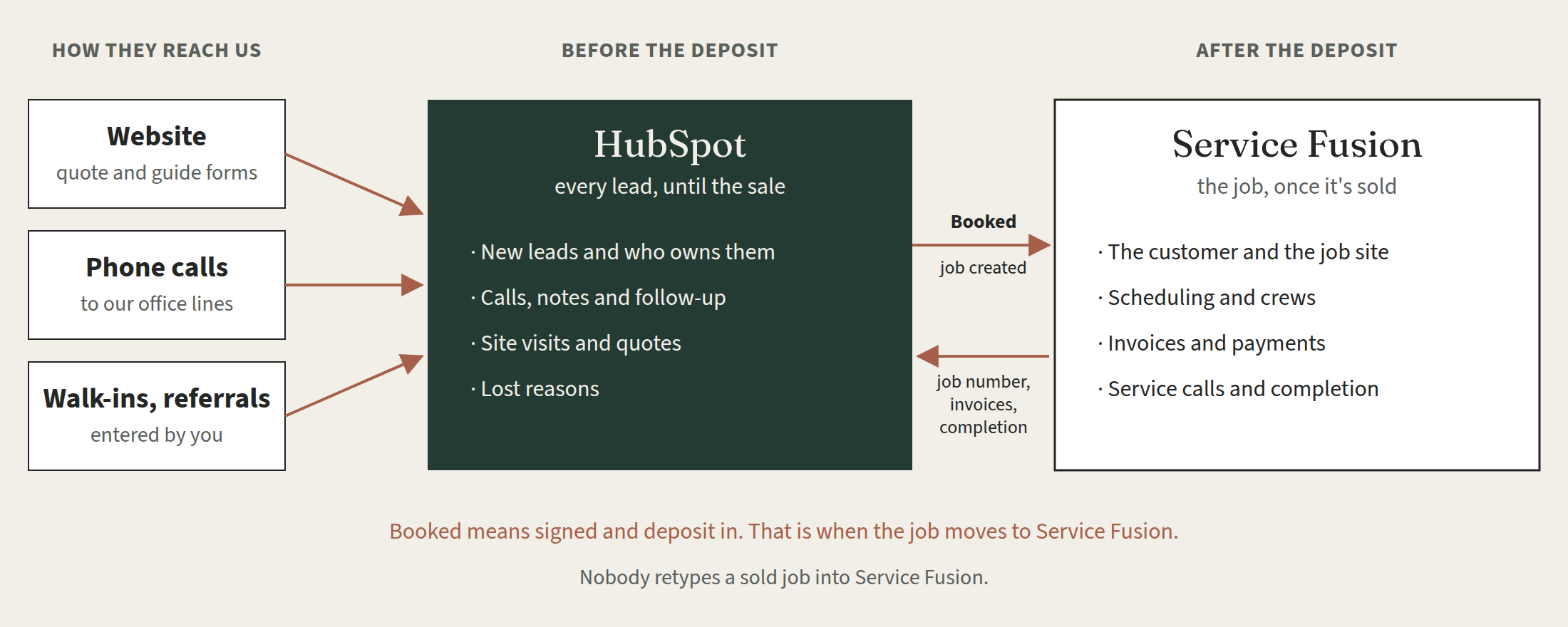
What happens when you move a deal to Booked
Once the connection is switched on, the customer and the job are created in Service Fusion for you. Don't retype a sold job into Service Fusion. The job number, invoices and completion date then show up on the HubSpot deal. Jennifer will let everyone know when the connection is on.
Three things to remember
- Customer's phone or email changed after Booked? Update it in both HubSpot and Service Fusion.
- Booked deal fell through? Move it to Lost with a reason and tell Jennifer, so she can cancel the job in Service Fusion.
- Leave the SF fields alone. Fields on a deal that start with "SF," and the HubSpot Deal ID field on a Service Fusion job, fill in by themselves. If one looks wrong, tell Travis.
Section 9
Keeping the records clean
Carl's reports and the jobs in Service Fusion come from what we enter in HubSpot. A few habits keep it right.
- Search before you create. Look the customer up by phone number or last name first. One person, one contact.
- One job, one deal. A customer who calls twice about the same stairlift has one deal. A second, separate job gets its own deal on the same contact.
- Found a duplicate? Tell Jennifer and she will merge them.
- Add a note after every conversation, including calls and texts from your own phone. If it isn't in HubSpot, nobody else can see it.
- Move the card when the job moves, not at the end of the month.
- Never delete a deal. Move it to Lost and pick a reason.
- Keep notes to what the job needs: the home, the stairs or doorway, the timing, who decides. Leave out health details and card or ID numbers.
- Mark every finished job complete in Service Fusion. That is what sends the customer a review request.
Before you move a deal to Booked, check:
- Contract signed and deposit in.
- Amount is the signed contract price.
- Primary line is right.
- Install street, city, state and zip are the job-site address.
- The customer's phone and email are correct.
Section 10
HubSpot on your phone
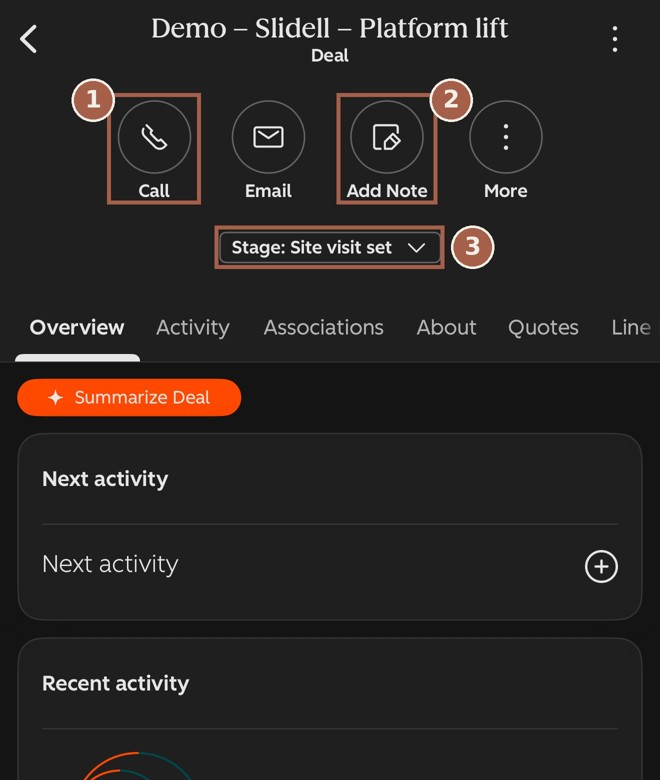
The HubSpot app for iPhone and Android shows the same deals. From the job site you can call, add a note, and move a card. Sign in with the same email you use for HubSpot on the computer.
Section 11
Set up your email and calendar
Do these once, in your first week. HubSpot's own step-by-step guides are linked below. Each one takes a few minutes.
- Connect your work email. Emails with customers then show up on their record, so everyone can see the conversation.
- Connect your Google Calendar. Site visits you book in HubSpot land on your calendar.
- Add HubSpot to Gmail. A small add-on for the Chrome browser that puts HubSpot inside Gmail.
- Install the HubSpot phone app. iPhone or Android.
When you want to learn more
- Save a Gmail email to a customer's record
- Add calls, notes and tasks to a record
- Work deals from the phone app
HubSpot's guides also describe features we don't have or don't use. Skip those parts. If a guide and this one disagree about how we do something, follow this one.
Reading this on paper? The web version of this guide has these links ready to click.
Keep this page by your desk
Quick reference
- Every morning: open New leads — mine. Contact everyone in New lead within 48 hours.
- After every call: add a note.
- After first contact: rename the deal, fill in Primary line, move it to Contacted, qualified.
- Move the card when the job moves. Fill in what HubSpot asks for.
- Booked means signed and deposit collected.
- Lost always gets a reason.
- Not yours? Change the deal owner.
- Walk-in, referral or returned call with no card? Create the deal and set Lead intake source.
- Search before you create. One person, one contact. One job, one deal.
- Before the deposit: HubSpot. After the deposit: Service Fusion.
- Never delete a deal. Use Lost.
- Every finished job: mark it complete in Service Fusion.
- First week: connect your email and calendar (section 11).
Questions: Jennifer for day-to-day questions about leads · Travis for how HubSpot is set up